ip
YLEXI User Guide
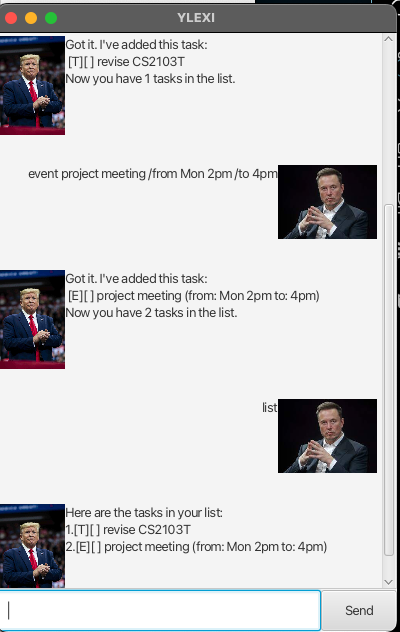
Are you feeling overwhelmed with your work? Too lazy to write down your schedule?
Do it in quick, fast and efficiently with YLEXI!
Quick Start
- Ensure that you have Java 11 or above installed in your Computer.
- Download the latest ylexi.jar from here.
- Copy the file to the folder you want to use as the home folder for YLEXI.
- Open a command terminal, ‘cd’ into your folder that you put the jar file in.
- Use the ‘java -jar ylexi.jar’ command to run the application.
A GUI similar to above should appear in a few seconds.
Features
1. Adding todo
Add a generic task that has to be done.
Example: todo revise cs2103t
Format: todo [TASK NAME]
2. Adding deadline
Add a task that has a specific deadline.
Example: deadline return book /by Sunday
Example: deadline return book /by 2/12/2019 1800
Example: deadline return book /by 2/12/2019
Format: deadline [TASK NAME] /by [DEADLINE]
Format: deadline [TASK NAME] /by [dd-MM-yyyy]
Format: deadline [TASK NAME] /by [dd-MM-yyyy HHmm]
- Define deadline with specific formats for date and time as shown above. Otherwise, a deadline that is not date formatted works too.
3. Adding event
Add a task that occurs over a period of time.
Example: event hack and roll /from Mon 12pm /to Tues 12pm
Format: event [TASK NAME] /from [START DATE] to [END DATE]
4. Editing task
Edit the various attributes of a task.
Example: edit description/return books/1
- Changes the description of the first task from “return book” to “return books”
Example [EVENT TASK]: edit start/3pm/1
- Changes the start time of the first task from “2pm” to “3pm”
Example [EVENT TASK]: ‘edit end/4pm/2’
- Changes the end time of the second task from “2pm” to “4pm”
Example [DEADLINE TASK]: edit by/monday/2
- Changes the deadline of the second task from “tues” to “monday”
Format: edit [ATTRIBUTE TYPE]/[NEW ATTRIBUTE]/[TASK NUMBER]
- Note that different tasks have specific attributes that can be edited:
- Todo:
description - Event:
description,start,end - Deadline:
description,by
- Todo:
- The respective attributes correspond to the commands that can be used.
5. Marking task
After completing a task, user can check it as done.
Example: mark 1
- Marks task 1
Format: mark [TASK NUMBER]
6. Unmarking task
To unmark a task that has been previously marked.
Example: unmark 1
- Unmarks task 1
Format: unmark [TASK NUMBER]
7. Deleting task
Delete a task from a task list.
Example: delete 1
- Deletes task 1
Format: delete [TASK NUMBER]
8. Listing task
List out all the task stored currently.
Format: list
Sample Output:
Here are the tasks in your list.
1.[T][]revise CS2103T
2.[E][]project meeting (from: Mon 2pm to: 4pm)
9. Exit the program
Close the program.
Format: bye